RadDataForm Validators List
If you followed the getting started section, you now know how to edit an object's properties with RadDataForm for NativeScript. From the validation overview you should have become acquainted with the validation feature in RadDataForm. This article will present you with the validators that you can use to validate your fields.
All validators have an errorMessage property which allows you to change the message that is displayed below the field when it is not valid.
- NonEmptyValidator
- RangeValidator
- MinimumLengthValidator
- MaximumLengthValidator
- EmailValidator
- PhoneValidator
- IsTrueValidator
- RegExValidator
- Custom Validators
- References
NonEmptyValidator
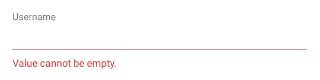
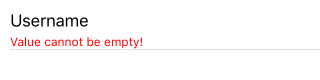
The NonEmptyValidator can be used with fields that are required so that empty input is not accepted as a valid value.
Figure 1: The NonEmptyValidator on Android (left) and iOS (right)
RangeValidator
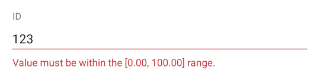
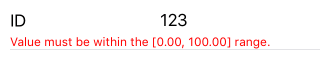
The RangeValidator can be used with numeric values to determine if they fall within a specified range. The range is defined with the minimum and maximum properties.
Figure 2: The RangeValidator on Android (left) and iOS (right)
MinimumLengthValidator
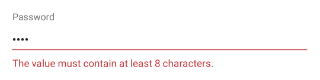
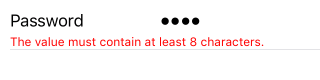
The MinimumLengthValidator can be used with text values to determine whether the length of the current input has at least the length specified by the length property.
Figure 3: The MinimumLengthValidator on Android (left) and iOS (right)
MaximumLengthValidator
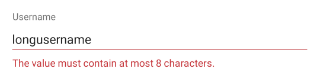
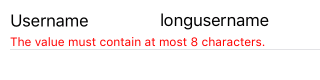
The MaximumLengthValidator can be used with text values to determine whether the length of the current input is shorter or equal to the value specified with the length property.
Figure 4: The MaximumLengthValidator on Android (left) and iOS (right)
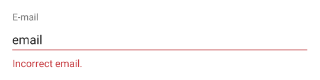
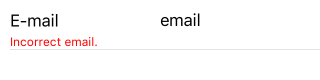
EmailValidator
The EmailValidator can be used with text values to determine whether the current input looks like an email. The email is defined with the following regular expression: [a-zA-Z0-9\\+\\.\\_\\%\\-\\+]{1,256}\\@[a-zA-Z0-9][a-zA-Z0-9\\-]{0,64}(\\.[a-zA-Z0-9][a-zA-Z0-9\\-]{0,25})+. If you want to use different criteria for matching an email, you can use the RegExValidator and specify your preferred regular expression.
Figure 5: The EmailValidator on Android (left) and iOS (right)
PhoneValidator
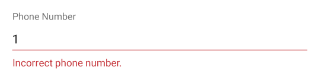
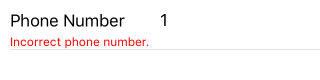
The PhoneValidator can be used with text values to determine whether the current input looks like a phone number. The phone number is defined with the following regular expression: (\\+[0-9]+[\\- \\.]*)?(\\([0-9]+\\)[\\- \\.]*)?([0-9][0-9\\- \\.]+[0-9]). If you want to use different criteria for matching a phone number, you can use the RegExValidator and specify your preferred regular expression.
Figure 6: The PhoneValidator on Android (left) and iOS (right)
IsTrueValidator
The IsTrueValidator can be used with boolean values to determine whether the current input is positive. For example, this can be used to verify that the user has confirmed agreeing with some list with terms and conditions.
Figure 7: The IsTrueValidator on Android (left) and iOS (right)


RegExValidator
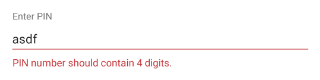
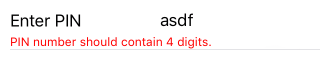
The RegExValidator can be used with text values to determine whether the current input matches the regular expression given as value of the regEx property of the validator. Here's an example that validates that the input contains exactly 4 digits:
Example 1: Use the RegExValidator to validate if input contains 4 digits
<df:EntityProperty name="pin" displayName="Enter PIN" index="5">
    <df:EntityProperty.validators>
        <df:RegExValidator regEx="\d{4}" errorMessage="PIN number should contain 4 digits."/>
    </df:EntityProperty.validators>
</df:EntityProperty>
Figure 8: The RegExValidator on Android (left) and iOS (right)
Custom Validators
If the provided list doesn't fulfil your requirements, you can define your own validators or create custom validation rules. More information is available on this article.
References
Want to see this scenario in action? Check our SDK Examples repo on GitHub. You will find many practical examples with NativeScript UI.
Related articles you might find useful: