RadCalendar Getting Started
This article will guide you through the process of adding a RadCalendar instance to a page in a {N} application. The code snippets from this section are available as a standalone demo application.
Installation
Run the following command to add the plugin to your application:
tns plugin add nativescript-ui-calendar
Initialization
Then, in order to add a RadCalendar instance in a page of your application, you need to define the following XML namespace:
-
xmlns:calendar="nativescript-ui-calendar".
After defining the namespace adding a RadCalendar instance to your page is done as follows:
<navigation:ExamplePage
    xmlns:navigation="navigation/example-page"
    xmlns:calendar="nativescript-ui-calendar"
    xmlns="http://www.nativescript.org/tns.xsd">
    <navigation.actionBar>
        <ActionBar title="Getting Started" />
    </navigation.actionBar>
    <calendar:RadCalendar id="calendar" />
</navigation:ExamplePage>
RadCalendarmust be put in a parent layout panel that does not require from its children to have their own desired size. You should not therefore putRadCalendarin aStackLayoutor an auto-sized row within aGridLayout.
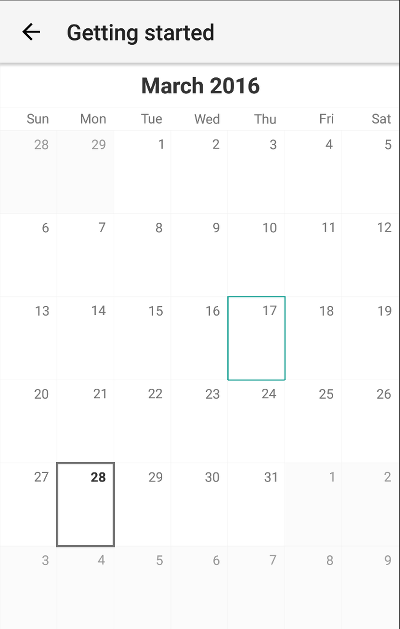
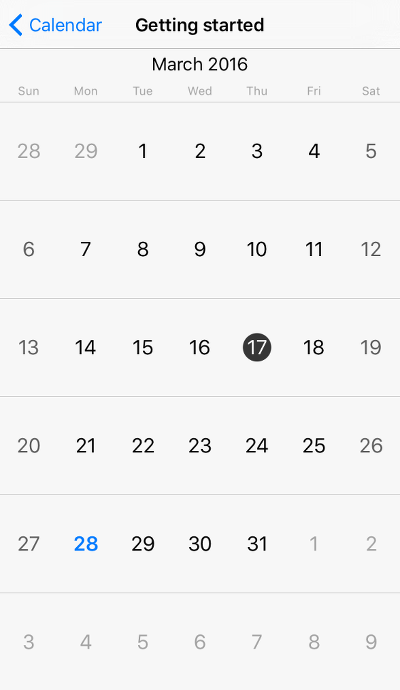
This will initialize a new RadCalendar instance and put it as a direct child of your page:
References
Want to see this scenario in action? Check our SDK examples repo on GitHub. You will find this and many other practical examples with NativeScript UI.