RadDataForm Custom Editors
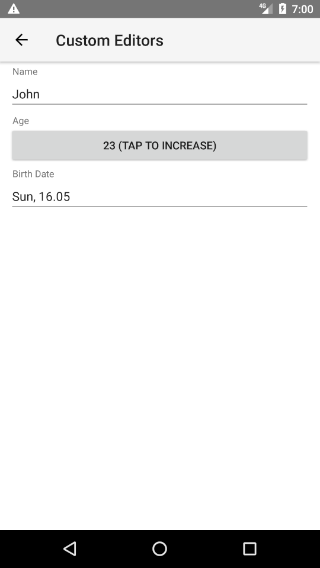
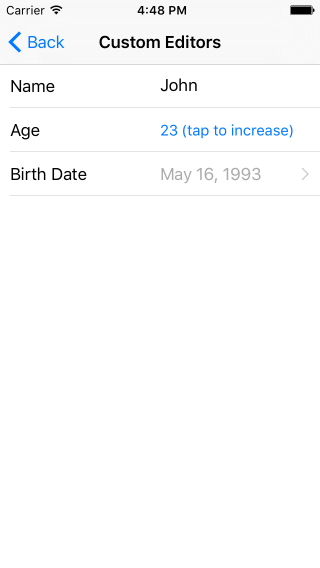
If you followed the getting started section, you now know how to edit an object's properties with RadDataForm for NativeScript. The editors list article demonstrated the available editors. This article will show you what to do if the editor you would like to use is not on the list with available editors. For example, if we wanted to have a Button to change the value of the property age in this example, we could use android.widget.Button in Android and UIButton in iOS.
Figure 1: RadDataForm with custom editor
Create a custom property editor
In this article you will learn how to create a custom editor that uses native Button controls to change its value as in the screenshot above. First, you will need to set an instance of CustomPropertyEditor as the editor of the EntityProperty associated with the property of the source object that we want to edit with a custom editor (in our example this is the age property):
Example 1: RadDataForm with custom editor
<RadDataForm tkExampleTitle tkToggleNavButton [source]="person">
    <TKEntityProperty tkDataFormProperty name="name" index="0"></TKEntityProperty>
    <TKEntityProperty tkDataFormProperty name="age" index="1">
        <TKCustomPropertyEditor tkEntityPropertyEditor (editorNeedsView)="editorNeedsView($event)" (editorHasToApplyValue)="editorHasToApplyValue($event)"
         (editorNeedsValue)="editorNeedsValue($event)"></TKCustomPropertyEditor>
    </TKEntityProperty>
    <TKEntityProperty tkDataFormProperty name="birthDate" index="2">
        <TKPropertyEditor tkEntityPropertyEditor type="DatePicker"></TKPropertyEditor>
    </TKEntityProperty>
</RadDataForm>
Here's the flow for the usage of the custom editor step-by-step:
-
RadDataFormloads and it needs a view that will be used for the custom editor - the editorNeedsView event occurs. - The original value of the property in our source object has to be loaded in the custom editor - the editorHasToApplyValue event occurs.
- The user interacts with the provided editor view which changes the value of the editor - you have to call the editor's notifyValueChanged method.
-
RadDataFormneeds the current value of the editor - the editorNeedsValue event occurs and we have to update the value of the property depending on the current value of the custom editor.
All aforementioned events are fired with arguments of DataFormCustomPropertyEditorEventData type.
Here's what we are expected to do in the handlers of each of the mentioned events:
- The editorNeedsView event occurs when a view has to be placed inside our custom editor, so in our event handler we will create a native view depending on the current platform and set the result as value of the
viewproperty of the event data (On Android the event data will contain acontextproperty withContextthat we can use to create ourView). - The editorHasToApplyValue event occurs when the value of the property has to be used as initial value of our editor. Here, we will just take the value of the
valueproperty and apply it as formatted text for the view provided with theviewproperty. - The editorNeedsValue event occurs when we have to update the property value. This means that we will use again the
viewandvalueproperties of the passed event data, but this time we will set the value depending on the value of our editor.
The following example demonstrates sample implementation of the mentioned event handlers:
Example 2: Event handlers for Custom Editor
Notice that we called the notifyValueChanged method of the CustomPropertyEditor. This is necessary since the value change depends on the custom editor that we provide and thus it is our responsibility to notify RadDataForm for the update in the editor's value and in this example, the value change happens when the button is pressed. We also used - editorNeedsView to create the native view; editorHasToApplyValue - to update the editor with the provided value and editorNeedsValue - to provide the value that the editor currently holds.
We have also created a helper class ButtonEditorHelper with an updateEditorValue method to help us keeping the current editor value. The iOS implementation also exposes a handleTap method that will be executed when the native button is tapped. This is explained in more details here. The next code snippets show the implementation of the mentioned helper class:
Example 3: Helper class implementation for Android
export class ButtonEditorHelper {
    public buttonValue: number;
    public editor: CustomPropertyEditor;

    public updateEditorValue(editorView, newValue) {
        this.buttonValue = newValue;
    }
}
Example 4: Helper class implementation for iOS
export class ButtonEditorHelper extends NSObject {
    public buttonValue: number;
    public editor: CustomPropertyEditor;

    public updateEditorValue(editorView, newValue) {
        this.buttonValue = newValue;
        editorView.setTitleForState(this.buttonValue + " (tap to increase)", UIControlState.Normal);
    }

    public "handleTap:"(sender) {
        const newValue = this.buttonValue + 1;
        this.updateEditorValue(sender, newValue);
        this.editor.notifyValueChanged();
    }

    public static ObjCExposedMethods = {
        "handleTap:": { returns: interop.types.void, params: [UIView.class()] }
    };
}
References
Want to see this scenario in action? Check our SDK examples for Angular repo on GitHub. You will find this and many other practical examples with NativeScript UI.
Related articles you might find useful: